Huntington AR Connect gives you multiple options to collect payments from your customers, including many ways to integrate "pay now" links and follow-up emails in your collections strategy.
Using email to collect payments and send invoices to customers is proven to remove obstacles and result in faster payments. Huntington AR Connect gives you multiple options to send invoice emails to your customers from the invoices tab.
When an invoice is created
Send from the invoice itself
Send emails to multiple customers as a batch
Copy/paste the payment link into your own email system
Sending an email when an invoice is created
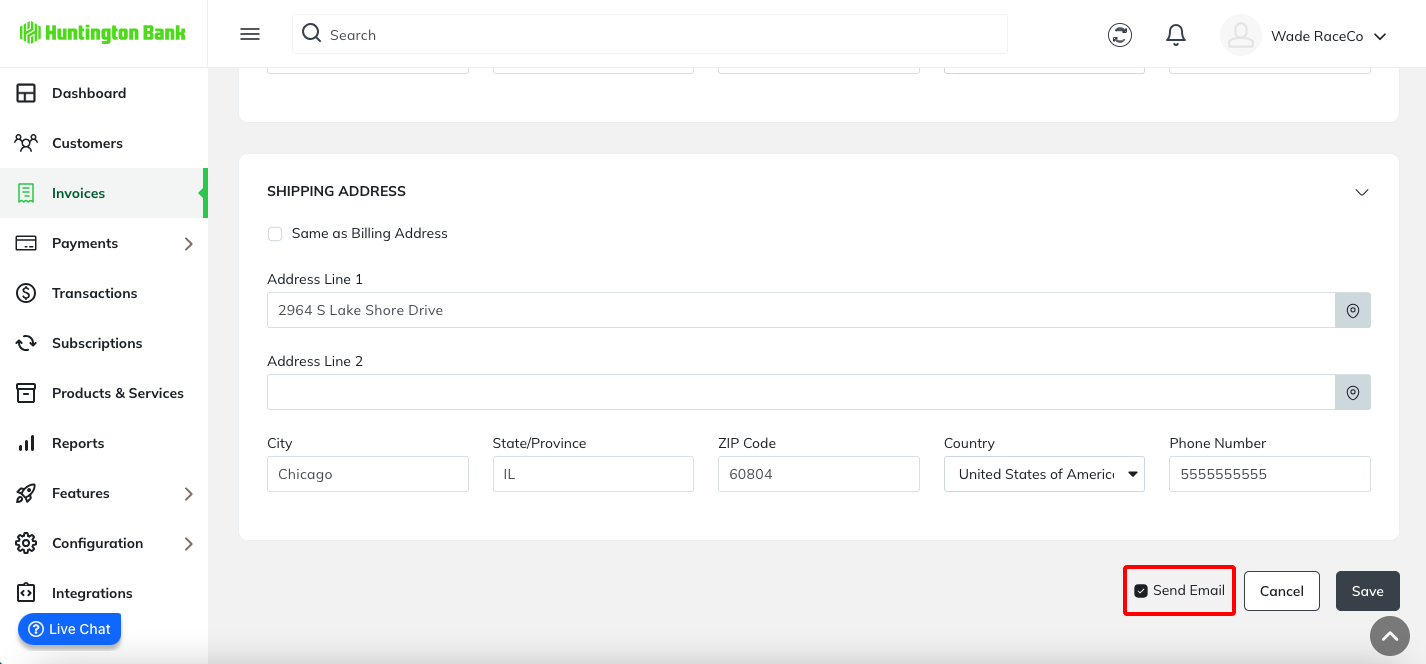
When an invoice is created, you have the option to send an email to your customer upon creation. Check the box for Send Customer Email before clicking Save.
Emailing an invoice after it has been created
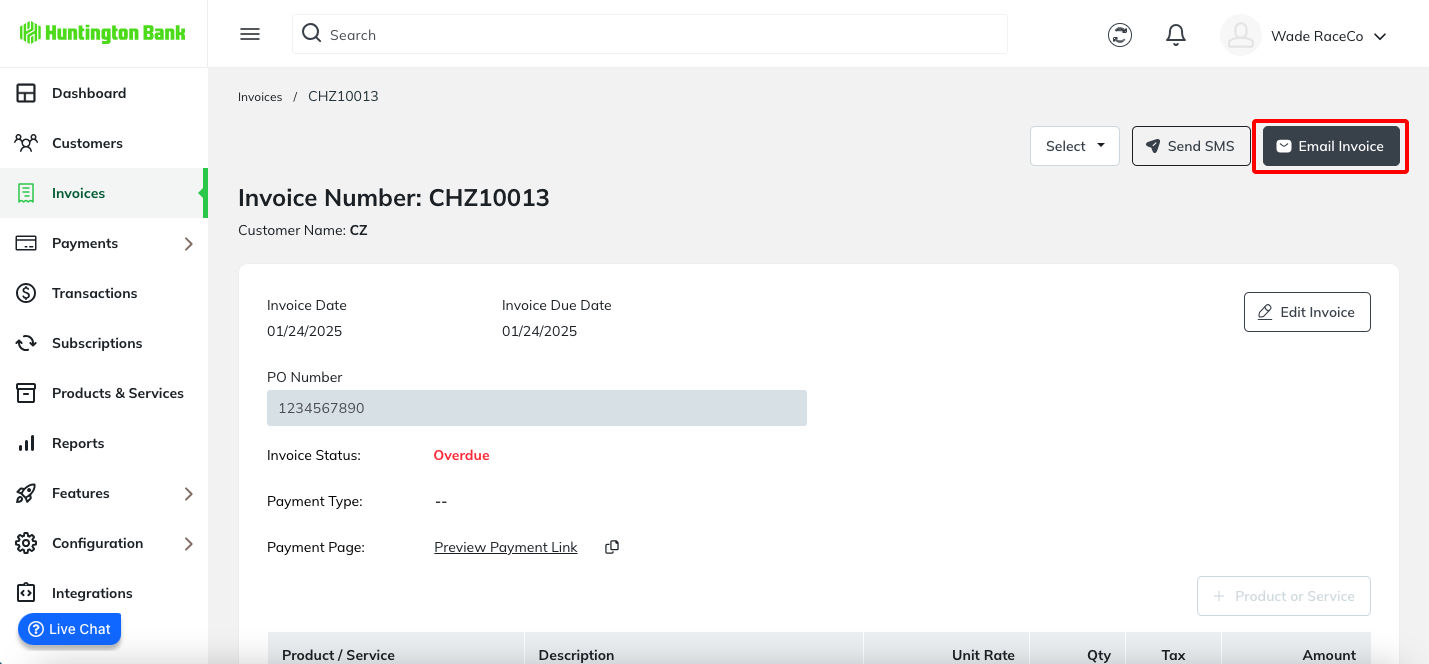
You can send an email directly from the invoice at any time. Click the Email Invoice button.
Sending Batch Emails
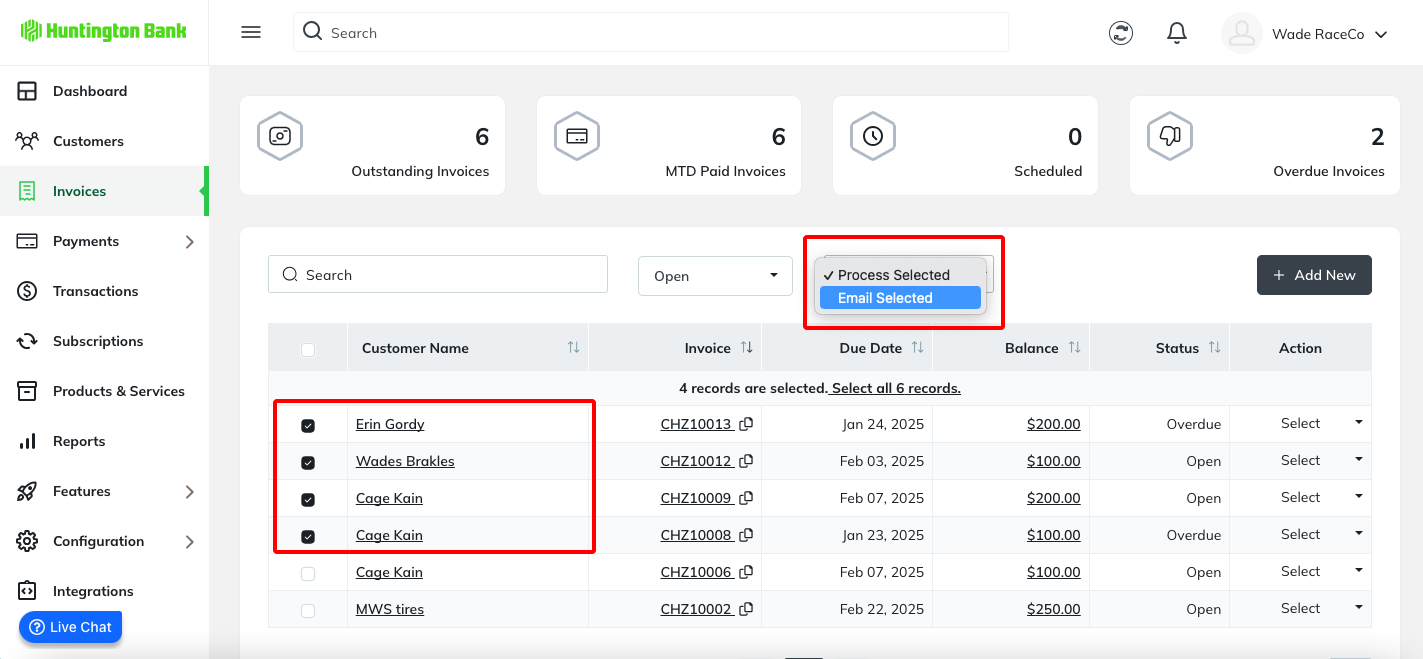
You also have the option to send emails as a batch to a larger group of people. From the Invoices view, check the names of the customers that you want to send an email to and then use the Batch Actions drop-down menu to select "Email Selected".
From your own email
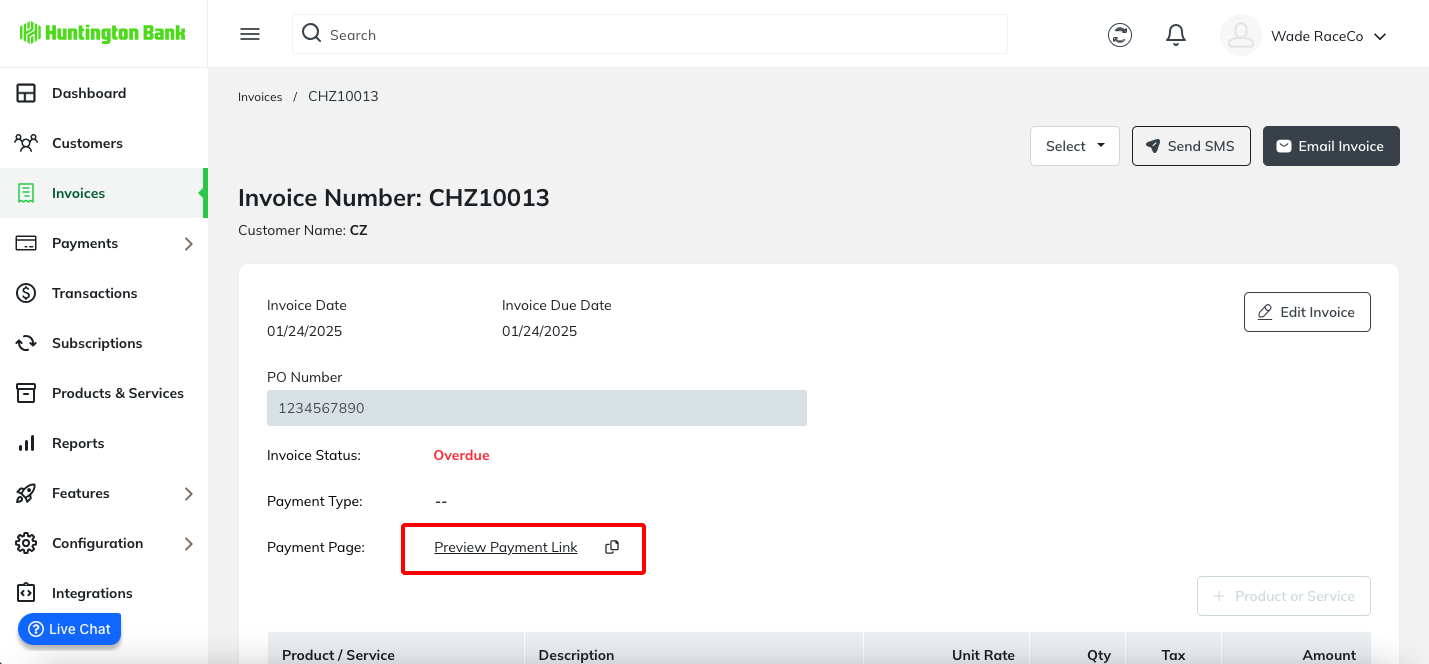
If you prefer to use your own CRM or email management system, you can also copy the payment link from the Invoice to share. On the Invoices Tab, select the invoice number and look for the Preview Payment link next to the payment page. This is the active link that is connected to the invoice which a customer can use to submit payment. You can copy the link and paste it to your own email.
Was this article helpful?
That’s Great!
Thank you for your feedback
Sorry! We couldn't be helpful
Thank you for your feedback
Feedback sent
We appreciate your effort and will try to fix the article